SAML SSO with Microsoft Entra ID
This article describes how to set up SAML Single Sign-on for Semgrep AppSec Platform with Microsoft Entra ID.
Prerequisites
- An existing Microsoft Entra ID account.
- Sufficient permissions within Microsoft Entra ID to create enterprise apps. See Microsoft Entra ID roles.
- Admin privileges for your Semgrep deployment.
Setting up SAML SSO using Microsoft Entra ID consists of the following general steps:
- Create a custom enterprise app within Microsoft Entra ID.
- Set up SAML SSO for your new enterprise app.
- Configure Semgrep.
- Add users to your new enterprise app.
Configure SSO
- Guided setup (beta)
- Legacy manual configuration
- Sign in to Semgrep AppSec Platform.
- Go to Settings > Access > Login methods.
- In the Single sign-on (SSO) section, provide a valid Email domain, then click Initialize.
- The Configure Single Sign-On dialog appears to guide you through the remaining configuration steps. Begin by selecting Entra ID (Azure AD) SAML.
- Follow the instructions provided on the subsequent Configure Single Sign-On dialog pages to complete this process. When you've completed the required steps, use Test sign-in to test the connection.
- Once test sign-in has passed, close the test page. Verify that the Connection details shown on the Connection activated screen are correct and close the dialog.
- Verify that the Connection status is now active under the Single sign-on (SSO) section in Semgrep AppSec Platform.
- To use the new connection, log out of Semgrep, then log back in using SSO.
Create a custom enterprise app
- Sign in to the Microsoft Entra admin center.
- Use the search bar to find and navigate to enterprise applications.
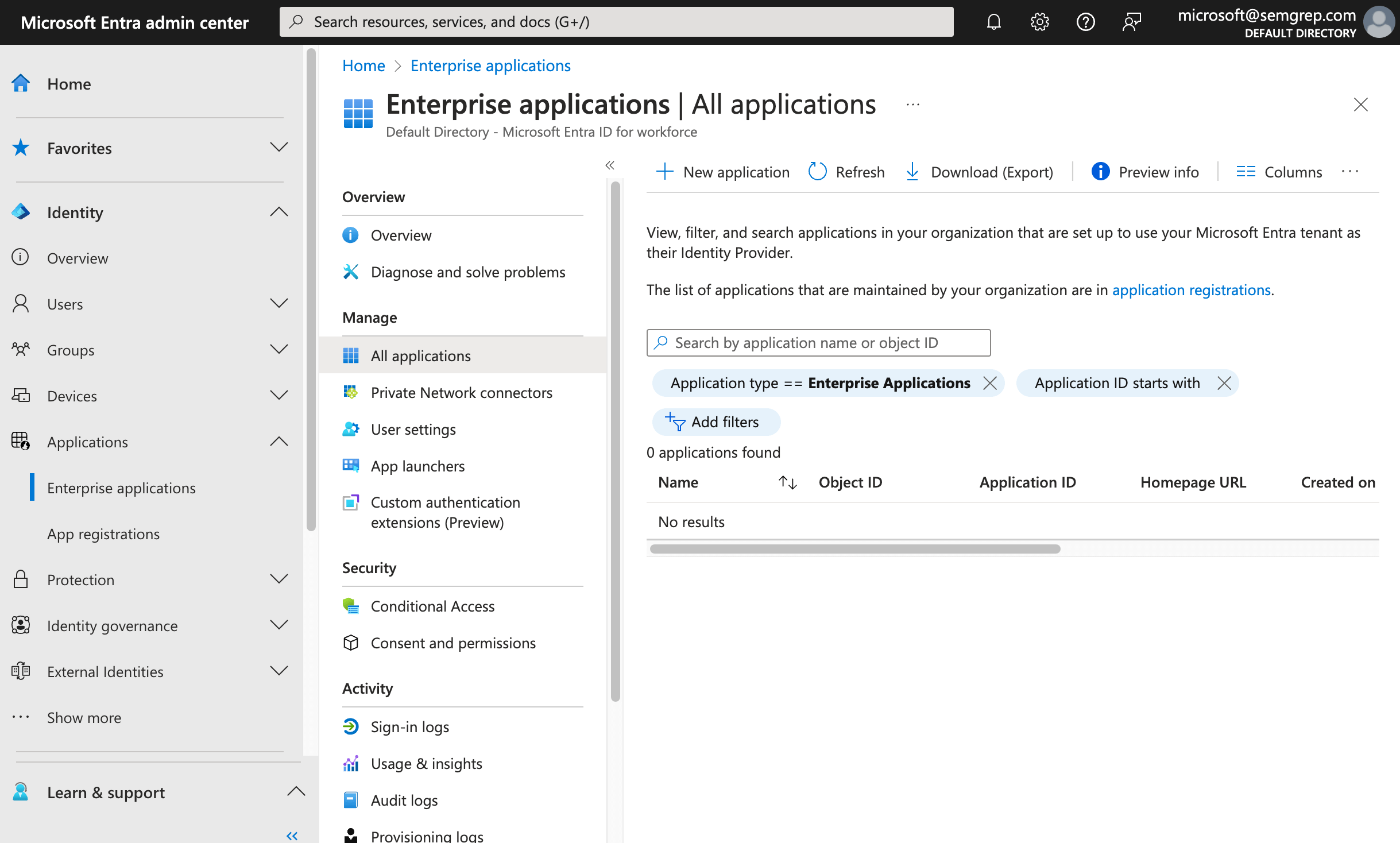
- Click New application > Create your own application. A menu appears.
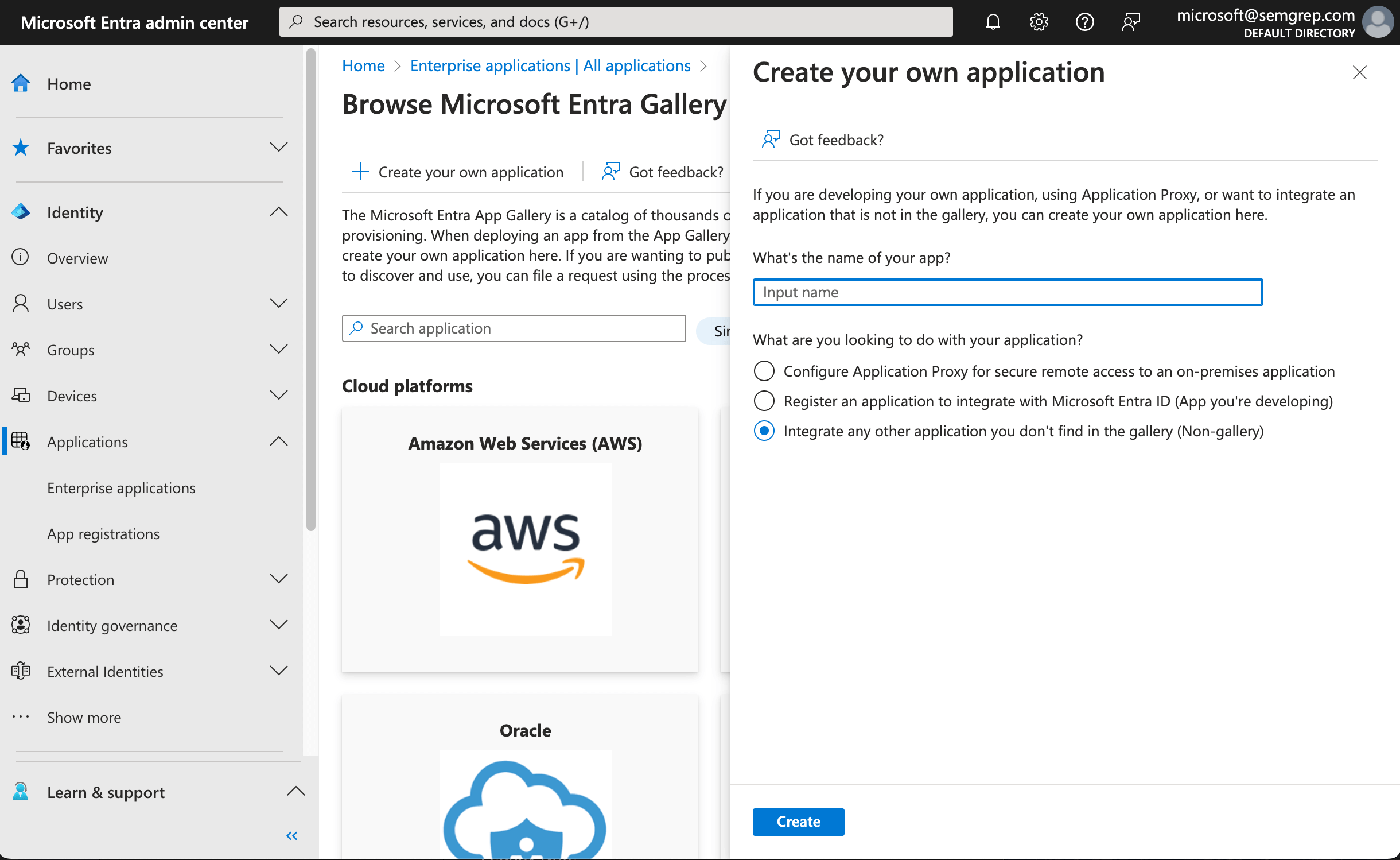
- Name your new application something like
Semgrep SAML. - Select Integrate any other application you don't find in the gallery (non-gallery).
- Click Create. This takes you to your new enterprise application's page.
You have now created a custom enterprise app for Semgrep to integrate with Microsoft Entra ID. This enables you to set up SAML SSO.
Set up SAML SSO for your new enterprise app
- From your new enterprise app's page, go to Single-sign on > SAML.
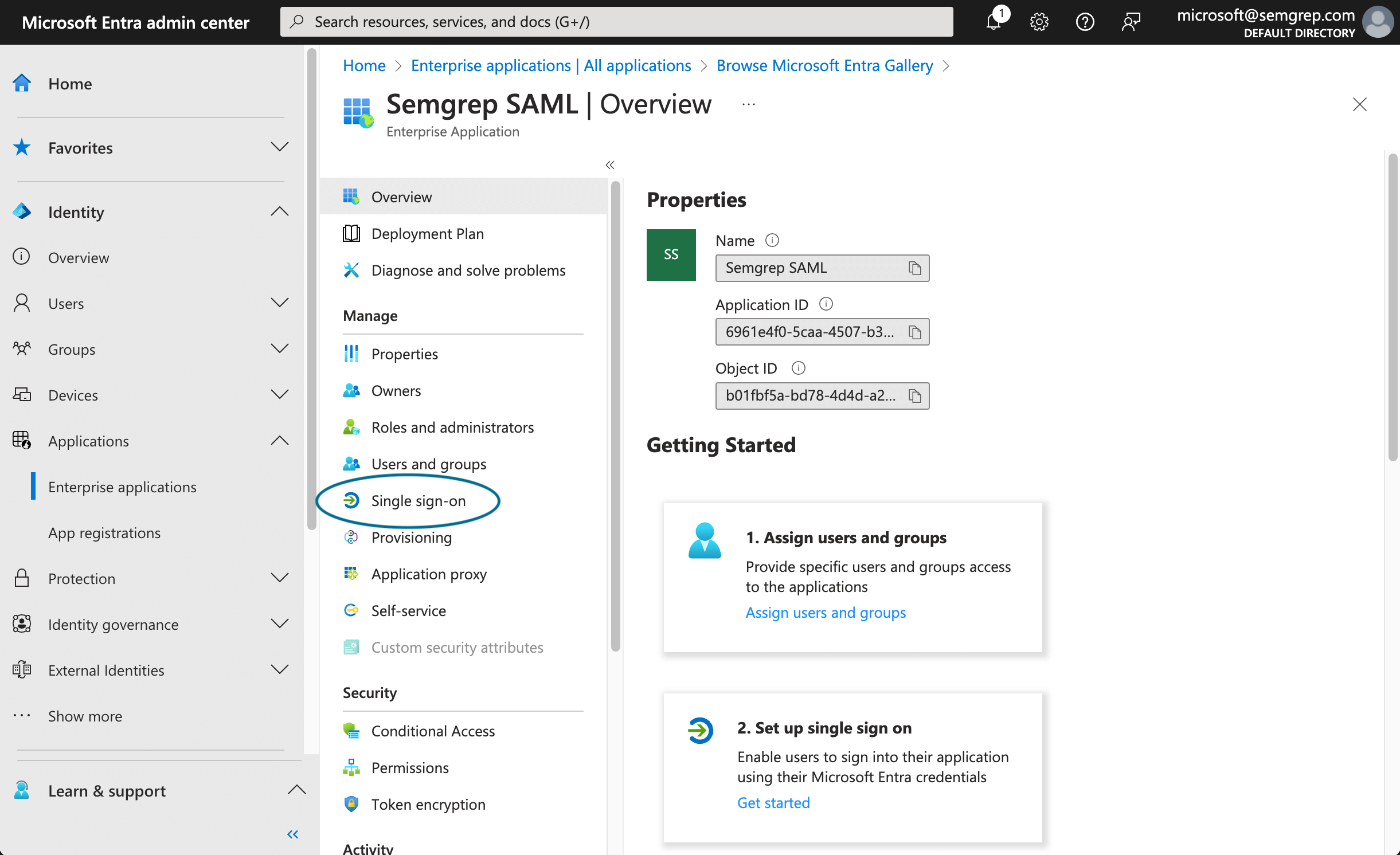
- When prompted to Select a single sign-on method, select SAML. You are redirected to the SAML-based Sign-on page.
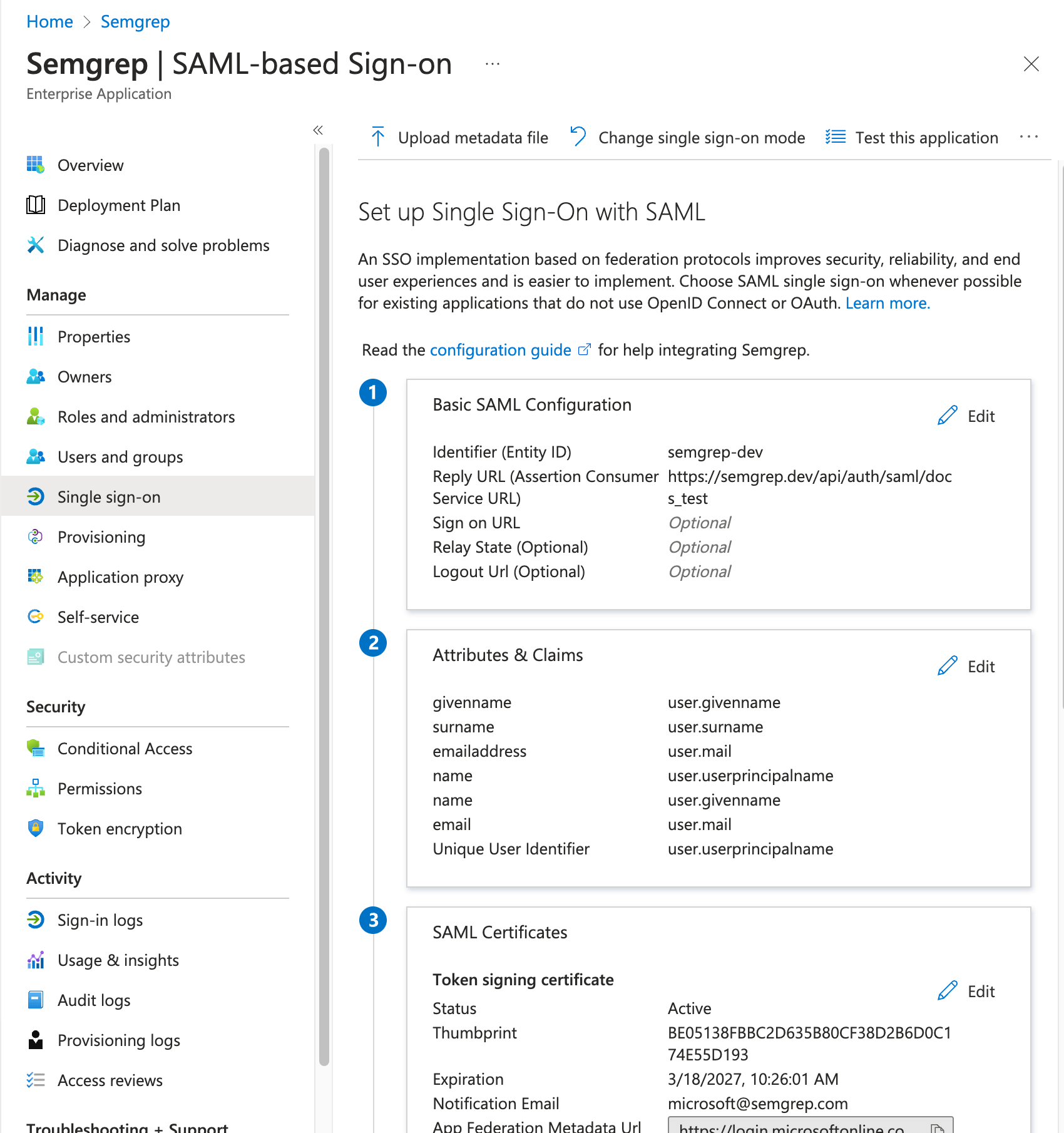
- In the Basic SAML Configuration section, click Edit. Provide the Entity ID and Reply URL. You can retrieve these values from Semgrep AppSec Platform by performing the following steps:
- Sign in to Semgrep AppSec Platform.
- Navigate to Settings > Access > Login methods.
- Click Add SSO configuration and select SAML2 SSO.
- Copy the Audience URL (SP Entity ID) value from Semgrep AppSec Platform. Return to Basic SAML Configuration. Click Add identifier to paste this value as the Identifier (Entity ID).
- Copy the SSO URL value from Semgrep AppSec Platform. Return to Basic SAML Configuration. Click Add reply URL to paste this value as the Reply URL (Assertion Consumer Service URL).
- Click Save and close out of Basic SAML Configuration.
- In the Attributes and Claims section, click Edit. You must add two claims. To add your first claim:
- Click Add new claim.
- Enter
namein the Name field. - For the Source attribute drop-down box, select
user.displayname. - Click Save.
- To add your second claim:
- Click Add new claim.
- Enter
emailin the Name field. - From the Source attribute drop-down box, select
user.mail. - Click Save.
- Close out of Attributes & Claims.
Configure Semgrep
- Navigate to Semgrep AppSec Platform, and provide the values required by the SAML2 form:
- Provide the Display name and the Email domain you are using for the integration.
- Copy the Login URL value from Microsoft Entra ID and paste it in into Semgrep AppSec Platform's IDP SSO URL field.
- Copy and paste the Microsoft Entra ID Identifier value into Semgrep AppSec Platform's IdP Issuer ID field.
- In Entra ID's SAML-based Sign-on page, click Download to obtain the Certificate (Base64).
- In Semgrep AppSec Platform, under Upload/Paste certificate, click Browse and then select the certificate you downloaded.
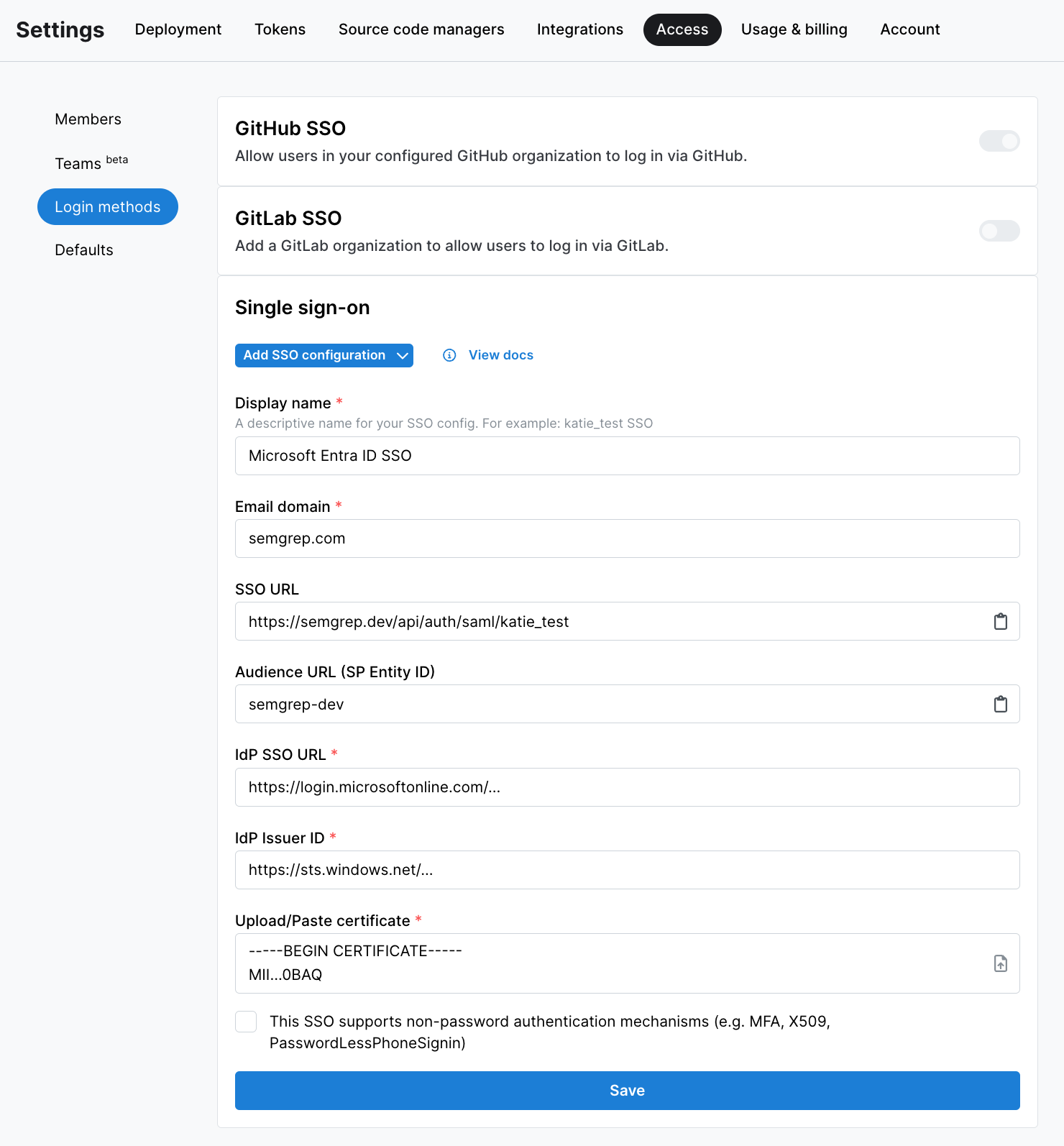
- Select the box next to This SSO supports non-password authentication mechanisms (e.g. MFA, X509, PasswordLessPhoneSignin) if applicable.
- Click Save to proceed.
Add users to your new enterprise app
To add users to the application in so they can log in with their domain emails, refer to Assign users and groups to an application.
Not finding what you need in this doc? Ask questions in our Community Slack group, or see Support for other ways to get help.